
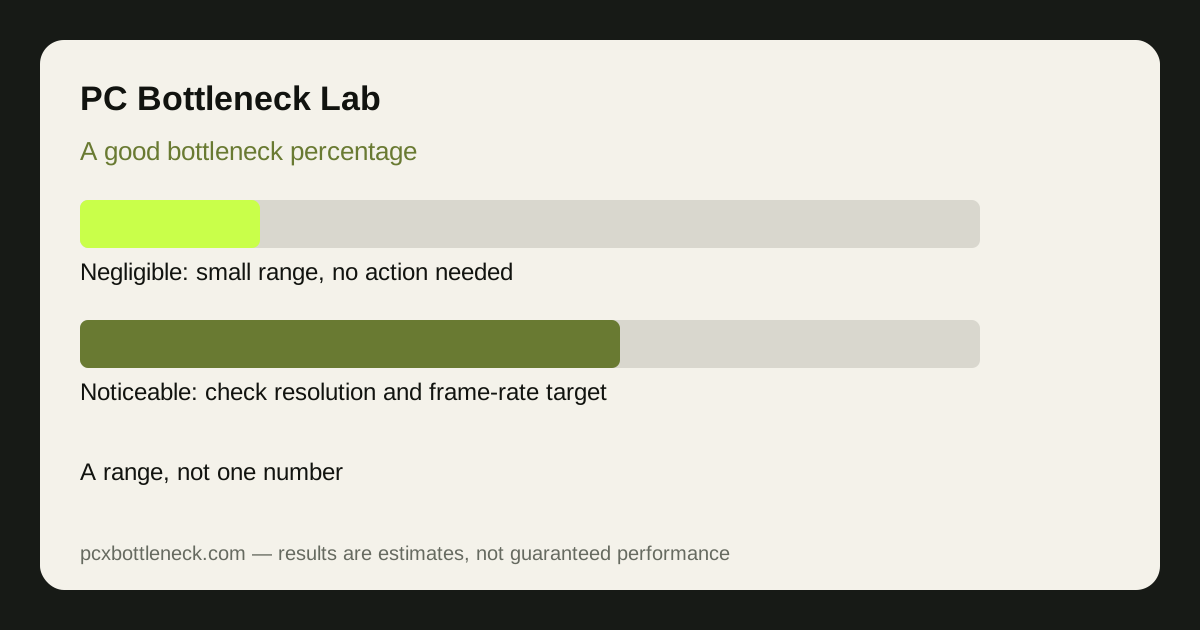
The ranges, and what each one means
Use these bands as a rough guide, not as a verdict. They describe how much performance a pairing may leave on the table compared with a balanced pairing at the same resolution.
| Estimated range | What it usually feels like | What to do |
|---|---|---|
| 0–10% | Negligible for most players | Nothing — spend on games, not parts |
| 10–20% | Noticeable mainly at high refresh rates | Check resolution and target first |
| 20–30% | Clearly noticeable, stutter possible | Plan an upgrade for the limiting part |
| Over 30% | Serious mismatch for demanding games | Upgrade the limiting part, or change resolution |
A result in the 10–20% band at 1080p and 144Hz is a different problem from the same band at 4K and 60Hz. The first may cost you smooth competitive play; the second may never be felt at all.
Why one percentage can mislead you
Calculators disagree because they measure different things: some compare raw CPU and GPU scores, some estimate FPS at one resolution, and some ignore game type entirely. A single percentage also hides the two facts that matter most, which resolution you play at and which part is limiting you. Two pairings with the same percentage can need opposite upgrades.
That is why the PC bottleneck calculator shows ranges by resolution instead of one headline number, and why our method guide explains what the numbers are based on. If a tool gives you a single decimal percentage with no resolution, game type or source, treat it as marketing, not measurement.
How to judge your own result in practice
Ask three questions before you act on a percentage.
- Does FPS hit your target? If you already reach the frame rate you want, smoothly, the percentage is academic.
- Where does the limit appear? A limit only at 1080p matters little if you play at 1440p or 4K, and a limit only in one game matters little if you rarely play it.
- Is it smooth? A steady frame rate with a modest percentage is better than a higher average with stutter. Frame times matter as much as averages.
For a worked example, compare Ryzen 7 9800X3D bottleneck with RTX 5070 bottleneck: a strong gaming CPU paired with a current GPU is typically balanced at 1440p, while the same pairing may show a wider GPU-side range at 4K, which is the healthy direction.
What to do at each level
At 0–10%, do nothing. At 10–20%, change the cheapest variable first: resolution, settings, or frame-rate target. At 20–30%, price the upgrade for the limiting part and check whether it also helps the games you actually play. Above 30%, the pairing is a poor match for demanding games, and the limiting part should be the first upgrade, unless you are happy to play at a higher resolution where the GPU takes over.
Recheck the band after any change, because a monitor upgrade, a new game, or a driver update can move a pairing from one band to another without any hardware change. A pairing that sat comfortably in the 0–10% band at 60Hz can land in the 10–20% band at 144Hz, and a pairing that looked poor at 1080p can look balanced at 1440p. The band is a snapshot at one resolution and one target, not a permanent grade for the PC, so run the calculator again whenever your setup or your games change.
Limitation: percentages from any calculator are estimates built from benchmark-scale data, not measurements of your PC. Your game, settings, RAM, cooling and drivers will move the real result, so confirm with the monitoring test in our PC Guides before you buy.
Frequently asked questions
Is a 0% bottleneck possible?
In theory, a perfectly balanced pairing at one resolution and one game could show almost no bottleneck. In practice, every pairing has a limit somewhere, and it moves with resolution and game type, so chasing an exact zero is not a useful goal for a real build.
Is a 20% bottleneck bad?
It depends on where it appears. At 1080p and high refresh rates it can be clearly noticeable, while at 4K and 60Hz the same range may never be felt. Judge the number against your resolution, your frame-rate target and the games you play, not on its own.
Does a high bottleneck percentage damage my PC?
No, a percentage on its own does not damage hardware. Heat, poor airflow and an inadequate power supply are the real risks, and they are separate from how balanced a pairing is. Read our guide on whether a bottleneck damages a PC for the full explanation.
Why do different calculators give different percentages?
Because they use different data, different resolutions and different methods, and some hide those choices entirely. Compare tools at the same resolution and game type, and prefer a tool that shows ranges and explains its method over one that gives a single decimal number.
Should I upgrade to get a lower percentage?
Only if the limit costs you something you can feel: frame rate below your target, stutter, or a game you cannot play smoothly. If FPS already meets your target, a lower percentage on paper is not worth the price of a new part.